
CaptionCall
CaptionCall, LLCCommunication
4.11.09K Reviews
- Version
- 39.0.2608
- Installs
- 500.00K
- Age Rating
- Everyone
Screenshots
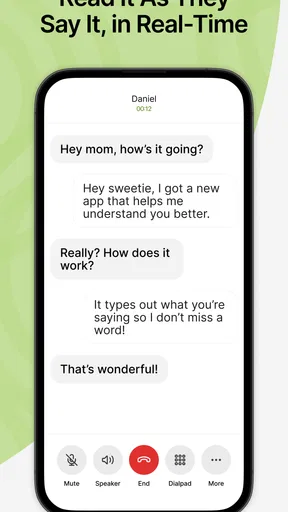
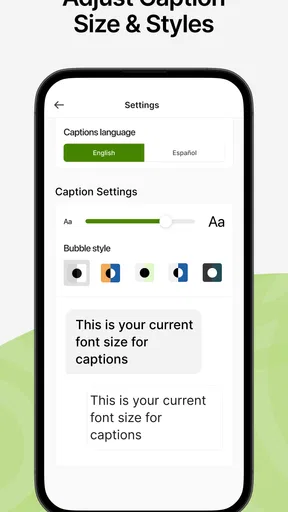
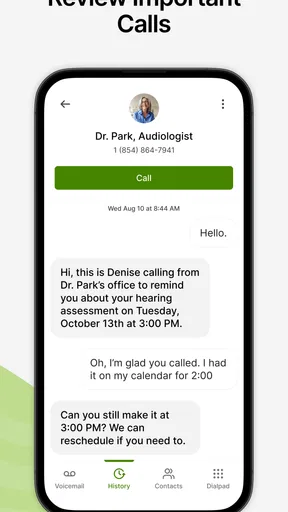
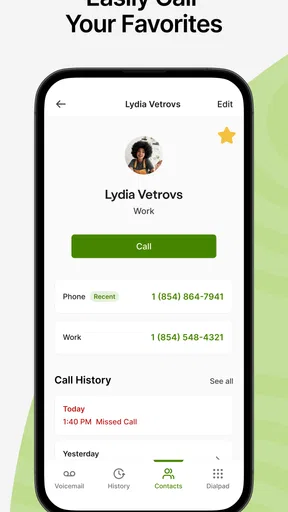
Our Review of CaptionCall
 Analysis by Appyee
Phone conversations can become tiring when hearing every word clearly takes extra effort. CaptionCall is built for that specific problem: it provides captions during phone calls so I can read along while listening. I see it as a focused communication app rather than a general messaging replacement, and that distinction matters. It is most useful when the main obstacle is understanding spoken conversation, not when I want a full suite of chats, video meetings, or text messaging.
After using it, my overall impression is practical rather than flashy. The app from CaptionCall, LLC keeps its purpose easy to understand, and its value depends heavily on the quality of the call, the phone, and the situation around me. When those pieces are in place, captions can make an ordinary conversation less stressful. When the environment is noisy or the call itself is unstable, the experience becomes less dependable, because captions cannot fully rescue unclear audio.
How CaptionCall feels in everyday use
I find CaptionCall most useful when a phone conversation deserves my full attention but listening alone leaves room for missed details. In this section, I’ll focus on how adding text changes the pace of a call and the small habits that make that support easier to use. That everyday rhythm also leads to a broader question: how much attention does reading along actually take?
A focused tool for phone conversations
The first thing I appreciate is that CaptionCall addresses a very particular need. Instead of asking me to switch a caller to a separate chat or rely entirely on memory, it places written words alongside the call. That can be useful for appointments, family conversations, service calls, and other moments when missing one sentence could create confusion.
The app belongs in the communication category, but it does not feel like a typical social or instant-messaging app. There is no reason to open it casually to browse conversations or send quick notes. I would open it when I already know that a phone call may be difficult to follow and I want an additional visual aid.
That narrow purpose is also its main strength. A specialized captioning experience can be more appropriate than asking a caller to repeat everything. It gives me a way to check what was said while the conversation continues, which is especially helpful when the other person is speaking about names, addresses, instructions, or appointment details.
What the speed feels like during a call
Perceived speed is less about launching the app and more about how quickly the captions keep up with the conversation. In a calm call, I find the experience easier to follow when the text appears close enough to the spoken words that I can use it as confirmation rather than wait for a complete transcript. That makes the conversation feel more natural than stopping after every sentence.
There is an important trade-off, though. Reading captions is not always instantaneous in the same way as hearing a clear speaker. A person who talks quickly, changes topics suddenly, or speaks over background noise can make the text harder to follow. I would not treat the captions as a perfect substitute for audio; I see them as a second channel that reduces the chance of missing information.
For the smoothest experience, I would prepare before answering an important call. I keep the phone somewhere I can look at it without holding it awkwardly, reduce nearby noise, and avoid beginning a complicated conversation while walking through a busy place. These small choices improve perceived responsiveness more than expecting the app alone to solve every listening challenge.
A realistic appointment scenario
Imagine receiving a call from a clinic while sitting at home. The caller gives a date, a time, and preparation instructions. Without captions, I might ask for repetitions or write down details from memory. With CaptionCall open, I can glance at the words while listening and verify the parts that are easy to confuse.
The useful detail here is not simply that text appears. It is the ability to slow down my own reaction without forcing the other person to repeat the entire conversation. I can ask a focused question such as whether the appointment is in the morning or afternoon, rather than saying that I missed everything. That makes the call feel more manageable and protects both sides from avoidable misunderstandings.
I would still keep a notepad nearby for information that must be remembered later. Captions help during the conversation, but I would not assume that looking back at a live call is the same as creating a permanent record. My safest workflow is to confirm important details aloud and write them down before ending the call.
Heavy-use moments and practical strain
CaptionCall is likely to matter most during repeated or demanding calls rather than a single short conversation. A long discussion with a utility company, an insurance representative, a school, or a medical office requires sustained attention. Reading and listening at the same time can reduce uncertainty, but it can also become tiring if I stare at the screen continuously.
My approach is to use the captions selectively. I look at them when a phrase is unclear, when a proper name is being spelled, or when the speaker gives a number or instruction. I do not try to read every line with the intensity of a document. That reduces visual fatigue and lets me participate in the call instead of turning the conversation into a transcription exercise.
There is another trade-off during heavy use: the phone becomes part of the conversation. If I need to move around, handle paperwork, or use the device for another task, keeping the caption view accessible may be inconvenient. This is one reason I would use the app for a focused call, not as a background solution while multitasking.
Stability and recovery when conditions change
For a communication app, stability matters more than decorative features. A captioning tool is valuable only if I can depend on it when a call begins. My expectation is that the best results come from a stable phone connection, a charged device, and a clear speaking environment. Those are not glamorous requirements, but they directly affect whether the text remains useful.
If the call becomes difficult, I would first check the simple causes: whether the phone has a reliable connection, whether the speaker is being covered, and whether background sound is overwhelming the conversation. I would also pause before repeatedly tapping controls, because hurried actions can make it harder to tell whether the problem is with the call or the app.
Recovery is particularly important for someone who depends on captions. If I lose track of a sentence, I would ask the caller to repeat only the specific part I missed and then confirm it aloud. That recovery habit is more reliable than pretending I understood. CaptionCall can support the process, but it cannot remove the need for clear communication when audio quality drops.
I also prefer to begin an important call a little earlier than the exact appointment time. That gives me a moment to prepare the phone and settle the environment instead of discovering a problem after the other person is already waiting. It is a simple routine, but it makes the app feel more dependable in real use.
Device and operating-system considerations
The app supports devices running Android 9 or later, which means compatibility depends on the phone’s operating-system version. Before relying on it for an important conversation, I would check the device rather than assume that every older phone can run it. This is especially relevant when someone keeps an older handset because it has a familiar interface or larger physical buttons.
The current version is 39.0.2608. I would keep the app reasonably current when possible, particularly for a communication tool where small compatibility issues can matter. At the same time, updating is not something I would do immediately before a critical call without testing it first. My preferred routine is to update in advance, open the app, and make sure the phone still behaves as expected.
Resource demands are difficult to judge from the app’s purpose alone, so I would avoid assuming that it is either extremely light or unusually demanding. Captioning during a call naturally involves ongoing activity on the device, and long conversations can be more demanding than a quick check. Keeping the phone charged and closing unnecessary background activity is sensible preparation, especially on an older device.
Screen size also affects comfort. On a small display, captions may require more frequent scrolling or closer reading, while a larger screen can make extended calls easier on the eyes. That does not make one phone universally better, but it does mean that the same app can feel very different across devices. I would judge it after a real conversation, not just after opening the interface.
Who will get the most from it?
I would recommend CaptionCall first to people who can hear some speech but need written support to catch every word. It can also be useful for family members helping someone organize calls, provided the person using it remains comfortable with the phone and the conversation. The app’s free price removes one obvious barrier to trying it, and its Everyone age rating makes it suitable for a broad audience.
Its audience is not limited to one type of call. A person might use it for a conversation with a relative, a customer-service issue, a work-related phone call, or an appointment. The common thread is the need to understand spoken information more confidently. I find that more compelling than using it merely because captions are available.
I would be more cautious about recommending it to someone who wants a complete alternative to speaking on the phone. It is not the right choice if the preferred communication method is text messaging, email, video chat, or a standard accessibility feature already built into the phone. It also may not suit someone who finds reading while listening more distracting than helpful.
How it compares with ordinary alternatives
The usual alternative is simply making a normal call and asking the other person to repeat unclear phrases. That costs nothing extra and works well when the caller is patient and the conversation is short. CaptionCall becomes more valuable when repeated requests are tiring, embarrassing, or impractical, because I can use the written words as ongoing support.
Text messaging is better when the conversation can wait and the information can be exchanged in writing from the beginning. I prefer text for addresses, lists, and instructions that do not need an immediate answer. A phone call remains better when the subject is complicated, personal, or easier to resolve through back-and-forth discussion. CaptionCall sits between those options by making a voice conversation easier to follow without requiring the other person to change channels.
Video-call platforms may offer captions as one part of a larger meeting experience, but they are not always the natural choice for a regular phone number or a caller who is not prepared to join a video service. A phone-captioning app is more focused in that situation. The trade-off is that it does not replace the broader tools found in a full meeting platform.
Built-in accessibility tools can also be a strong alternative, depending on the phone and the user’s needs. Those tools may work across more situations, while CaptionCall is specifically centered on phone call captioning. I would choose the option that creates the least friction during the calls I actually make, rather than assuming the most specialized app is automatically best.
Small habits that improve the experience
One useful habit is to tell the caller at the beginning that I may pause to confirm a detail. That sets a comfortable expectation and prevents a short silence from feeling awkward. I also repeat names, dates, and instructions back to the caller, because captions are an aid to understanding, not a reason to skip verification.
Another tip is to separate listening from note-taking. If I try to read captions, write everything down, and manage the call at the same time, I can lose the thread. I first use the text to understand the sentence, then record only the information I need. This is particularly helpful during administrative calls where a long list of details can overwhelm the screen and my attention.
For a noisy environment, I would move before blaming the app. Kitchens, public transport, televisions, and conversations nearby can all make speech harder to interpret. A quieter room and a stable position often produce a bigger improvement than repeatedly reopening the application. CaptionCall is most persuasive when it complements good call conditions.
Reputation, cost, and practical expectations
CaptionCall has an average rating of 4.1 from around 4.3 thousand ratings, with roughly 1.1 thousand written reviews. Its listing shows over 500 thousand installs, so it has reached a substantial group of users without being a universal phone app. I read those figures as signs of meaningful interest, not as a guarantee that every device or conversation will feel identical.
Because it is free, trying it is easier than committing to a paid communication service. Still, “free” does not remove the need to check whether it fits my phone, my hearing needs, and the way I prefer to communicate. The real cost can be time spent adjusting to a captioned call, learning a new routine, or discovering that a text-based alternative is more comfortable.
The developer is CaptionCall, LLC, and the app was released on July 27, 2020. Those details place it as an established communication product rather than something I would treat as an experimental novelty. I would still evaluate it through my own calls, because stability and comfort are personal in this category.
My final performance verdict
My verdict is positive for the right user: CaptionCall is a focused, free option for making phone conversations easier to understand through captions. Its perceived speed is most convincing when the call is clear and the speaker is reasonably paced. Its stability depends on the wider phone and network situation, while long sessions can demand attention from both the screen and the user.
I would recommend testing it with a low-pressure call before using it for an appointment or an important service conversation. That trial reveals whether the text is comfortable to read, whether the phone is suitable, and whether the workflow feels natural. If I were helping a friend choose, I would say the app is worth trying when hearing support is the goal, but I would not present it as a replacement for every other communication method.
The best reason to choose CaptionCall is simple: it gives me another way to catch what was said when listening alone is not enough. If that is the problem I face, the app has a clear purpose and a practical place in my daily routine. If I mainly want messaging, video calls, or a tool for multitasking, I would choose a different option instead.
Verdict
Strengths of CaptionCall
- Designed to make phone conversations easier for people with hearing loss.
- Live captions appear while the other person is speaking.
- Can help users stay connected with family, friends, and services.
- Useful for both incoming and outgoing calls.
- May reduce the need to repeatedly ask callers to repeat themselves.
Limitations of CaptionCall
- Requires a compatible CaptionCall service and account in supported areas.
- Caption accuracy can vary with accents, background noise, or fast speech.
- Some features may depend on internet access and device compatibility.
- The app may use significant battery during extended calls.
- Not ideal for users who prefer fully private, caption-free conversations.
Similar Picks in This Category
View All
Google Messages
Google LLC4.6

Gmail
Google LLC4.1

Google Meet
Google LLC4.4

Google Chrome
Google LLC4.1

WhatsApp Messenger
WhatsApp LLC4.6

Carrier Services
Google LLC4.2
Frequently Asked Questions
What is CaptionCall, and who is it designed for?
CaptionCall is a captioned telephone service designed primarily for people who have hearing loss and need help understanding phone conversations. It displays a written transcript of the other person’s speech while the call is taking place. The service is most useful for users who can speak normally but benefit from reading captions, although eligibility and availability may depend on local regulations and service requirements.
Is CaptionCall free to download and use?
The CaptionCall application may be available to download without an upfront charge, but access to its captioned calling service is not necessarily open to everyone. In supported regions, users may need to complete an eligibility process, provide certification of hearing loss, or use an approved CaptionCall setup. Before downloading, check the current service terms, supported locations, and any equipment or account requirements that may apply.
Does CaptionCall work on Android and iPhone devices?
CaptionCall availability can vary depending on the device, operating system, country, and the specific version of the service offered. Before installing it, confirm that your Android phone or iPhone meets the listed requirements and that the application is officially supported in your area. Some features may also require a compatible phone number, internet connection, microphone permissions, and account registration.
How accurate are CaptionCall’s live captions?
CaptionCall’s transcripts are intended to make conversations easier to follow, but they should not be treated as perfectly accurate. Recognition quality can be affected by accents, background noise, poor connectivity, fast speech, technical terms, or people speaking over one another. During testing, users should expect occasional mistakes and confirm important details such as names, addresses, appointments, and financial information.
What permissions and internet connection does CaptionCall require?
To provide captioned calls, CaptionCall may need access to features such as the microphone, phone functions, notifications, and an internet connection. The exact permissions depend on the device and application version. A stable Wi-Fi or mobile-data connection is recommended because weak connectivity can interrupt calls or delay captions. Review the privacy policy and permission requests before creating an account or placing calls.
